Netgear / solid green
Netgear lights meaning
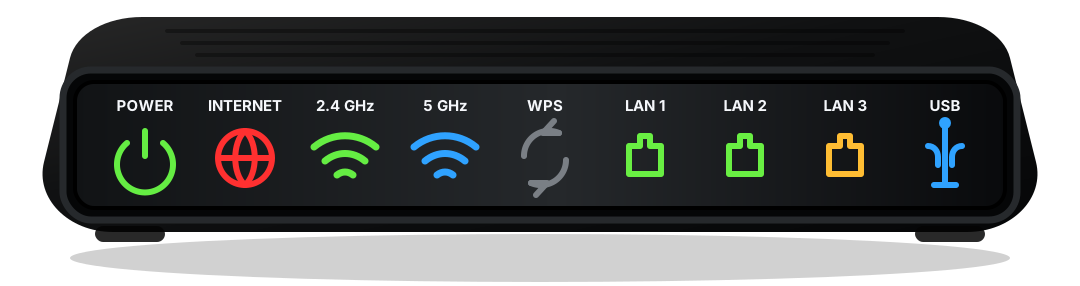
Netgear router or cable modem lights make more sense when read by label first and color second. Netgear models often separate Internet, Wi-Fi bands, and Ethernet, so one bad LED can point to a cable, WAN, or local device issue.
Short answer
What do Netgear lights mean?
Netgear router or cable modem lights make more sense when read by label first and color second. Netgear models often separate Internet, Wi-Fi bands, and Ethernet, so one bad LED can point to a cable, WAN, or local device issue.
Netgear models often separate Internet, Wi-Fi bands, and Ethernet, so one bad LED can point to a cable, WAN, or local device issue.
Safe order
Check in this order
- Confirm the matching label: power, online, Wi-Fi, or Ethernet.
- If internet is still down, test a wired device before changing Wi-Fi settings.
- Look for a second warning light that explains the real fault.
- Restart only if the solid light conflicts with no service.
Light labels
What the nearby label changes
Before a factory reset
A reset can erase Wi-Fi names, passwords, port forwarding, and provider activation state. Use it only after power, cable, outage, and startup checks do not explain the light.
When to call support
Call the provider when Online, Internet, Broadband, US/DS, or Optical never reaches a steady normal state after one clean restart and cable check.
When Wi-Fi settings matter
Change Wi-Fi settings only when service lights are healthy but phones, laptops, or smart devices cannot join the wireless network.